
Using Events
Events are a custom content type used to store event information and present that information in the correct chronological order (i.e. by the date on which the event takes place).
Events have a number of additional fields to complete when you add them:
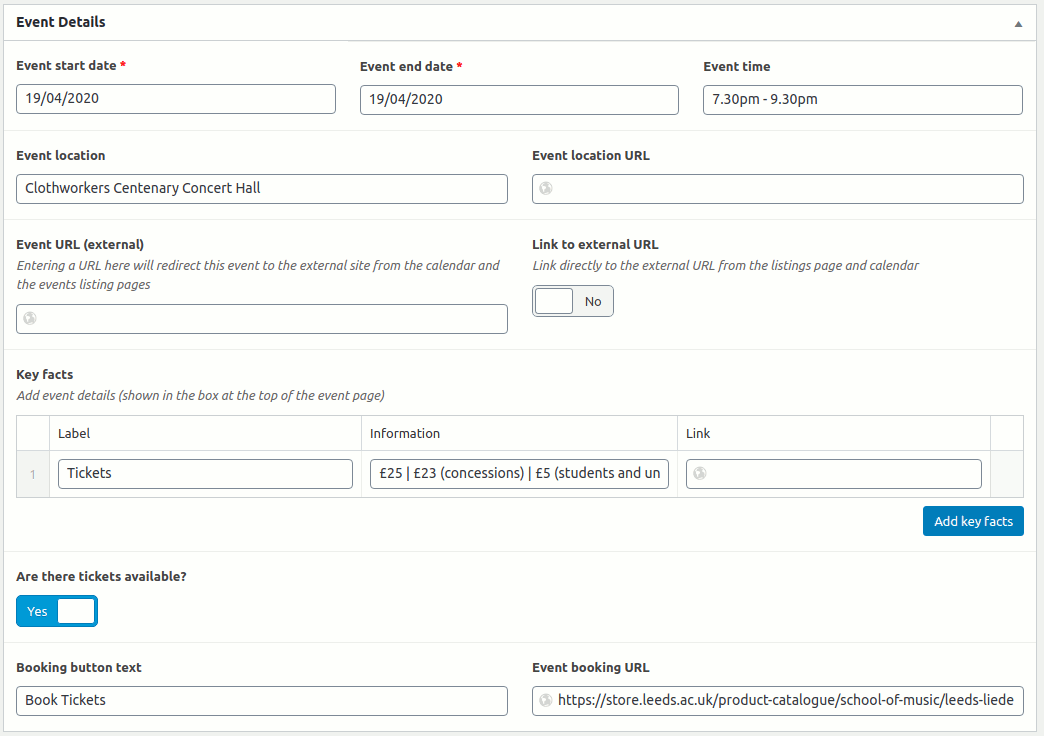
Enter the date on which the event takes place as the start date, and if it lasts for more than one day, enter the date on which the event finishes as the end date. Both fields must be filled in for you to save the event. The Event time field is a text input and does not require specific formatting – it also has no effect on the ordering of events. Events are ordered by start date and then by publish date, so if you have more than one event on the same day, use the publish date to get them in the correct order.
The Event Location field can be linked to another website or web page using the Event Location URL field.
The Event URL (external) field is used to link the event to an external URL which holds the information for the event. This can either be shown as a link in the event page “key information” box, or you can specify that the event is linked directly (redirected). If you are redirecting events using this, ensure you have entered a title and an excerpt for the event to show on the main Events page (and featured image if possible).
The Key Facts for the event should include ticket prices and any other pertinent information – these are displayed in a “key information” box a the top of the event page.
If you have enabled bookings for events (in Events Settings), you will also be able to set the button text and booking URL for events which still have tickets, or change this to a message (Free, Sold out, Cancelled) if no tickets are available.
Events have their own Categories which you can use to group different types of events with – as an example, if you had a series of exhibitions (eg. Autumn 2022 programme), they could be grouped into a category so there is a page listing all events within that series.
Event Settings
The way Events are displayed on the main Events archive page can be adjusted in Events->Event Settings.
- Page title - set a custom title of the events archive page – this will also change the breadcrumb trail. If you also want to change the URL of the events archive, you can edit the permalink in Settings->Permalinks.
- Page introduction - add some introduction text to appear at the top of the events archive page.
- Include the time field with the date of events on listing pages
- Enable event bookings - enabling event bookings will allow you to add a button to events to an external URL.
- Categories - whether or not to show categories on the events archive or event pages (shown by default).
- Show tags - whether or not to show tags on event pages (not shown by default).
- Events with no start date - events with no start date are not shown either in the admin area or on the site. This tool identifies any events without start dates (from imports, etc.) so they can be corrected.
- Events Search filter by category - add one or more category search filters to the search box.