
The content editor
Formatting the page
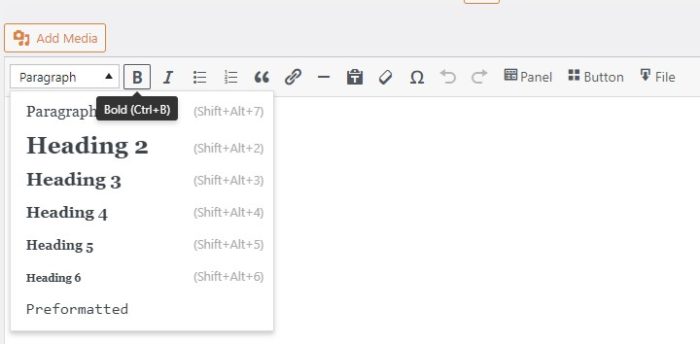
The editor has common styling tools (bold, italic), formatting tools for lists, alignment and text linking tools.
Focussing on the paragraph drop-down menu will give you a number of options for whether you're creating a heading, paragraph or preformatted text area.
Important: Headings are extremely important for accessibility. You must avoid picking a heading for reasons such as preferring the look of a H3 over a H4.
Most of these tools assume you have text highlighted in the editor to apply formatting to before you use them.
Headings
Links
When linking to pages, ensure that the linked text makes sense if it is read independently. In other words, linking from the words “click here” or “download” does not make sense when taken out of context (which is what screen reading software does) – consider linking entire sentences or phrases, like “Download the conference programme”.
Links can be added to the page text by selecting the text you want to form the link, then clicking on the Insert Link button. A dialog will appear where you can paste in a URL, add a title (which forms the “tooltip” when the link is hovered over by a mouse), or select an existing page on the site. To remove links from text, place the cursor in the linked text and click on the Remove Link button.
If you have a file to link to, considering using the "File" option you see in the editor. That will let you add a url in for a file and format the file download link in a particular way.
You can also add a "button"-styled link. Buttons are primarily used for form submissions so it's best to stick to styling links in the standard way (using the "link chain" icon).
View the digital accessibility guidelines on using links for best practice approaches.
Special characters
Inserting accented or other special characters is achieved using the Character Map plugin in the editor (omega Ω symbol). If you are inserting long passages of text in a non-english language, you should add the correct language code to the text (see a list of language codes here). This is done by adding an attribute to the containing HTML element – you will need to switch from “Visual” mode to “Text” mode in the editor using the tabs on the top right of the editor to do this. If the text is in a paragraph or quote, wrap it in <p lang="br">[…]</p> tags or <blockquote lang="br">[…]</blockquote> tags respectively. If the text consists of a number of paragraphs, wrap them all in <div lang="br">[…]</div> tags (this example assumes the language is Breton).
Blockquotes with attribution
For example if I wanted to credit the University of Leeds with this quote.
There isn't an easy way to do this currently. It can be achieved though.
First, add your blockquote. Then, go onto the "Text" tab within the content editor. You should see the underlying HTML code.
You can add a citation by inserting footer tags before the closing tag of the blockquote.

The code should resemble the image above.