
Uploading and embedding videos via Panopto
Logging in to Panopto
- Log into Panopto by visiting the following link: https://leeds.cloud.panopto.eu/. It should take you to the normal University login pages to login with your account.
Uploading a video to Panopto
- When you're logged into Panopto, click on the 'Create' button at the top left. This should give you a drop down menu and you can select 'Upload Media'.
- A new popup window should appear and you can either click in the upload area to open up a file explorer to find the file you want to upload, or drag and drop the file into the popup area to begin the upload.
- Once the video is uploaded, it should appear under the the upload area with a green tick next to it. By default, the videos get uploaded into your personal folder called 'My Folder'.
Changing the sharing settings on the video
By default, uploaded videos are set to 'Restricted' where only specific people and groups you choose can view the video. This settings needs to be changed to allow any one to view the video as it will be embedded on your website.
- Click on 'My Folder' in the left hand menu and you should see a list of all your videos. Hover over the screenshot of the video and some icons should appear. Select the 'Share' icon (it looks like 3 dots with 2 lines joining the dots).
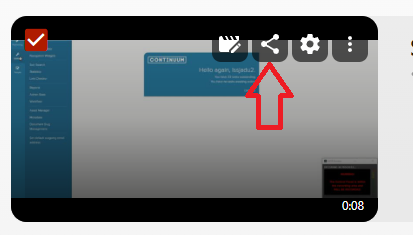
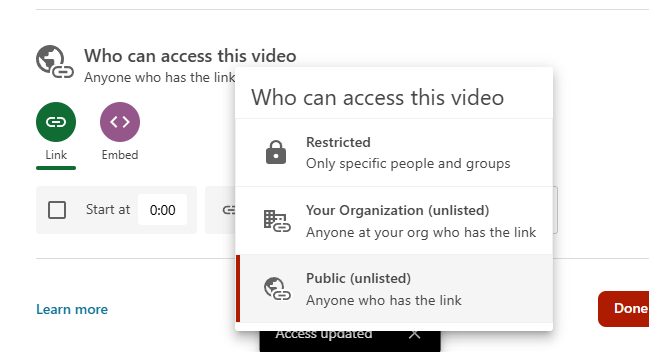
- After selecting the 'Share' icon, a popup window will appear. From here, next to where it says 'Who can access this video', click the 'Change' button, and select 'Public (unlisted)'
Getting the embed code
- On the 'Share' popup window just below the 'Change' link area, there should be an 'Embed' icon with two brackets < >. Click on this and it will give you some options you can choose (such as displaying the video title & logo on the video embed etc), but just below that there's a button that says 'Copy Embed Code'. This is the code you'll need to display the video on your website.

- Open up the page you want to embed the video on and paste the embed code in there. The pasted code will look something like the example code below to start with, but there are a few changes that need to be made before saving the page on the website:

- Delete the top line and the bottom line (the 'div' lines), so that all you're left with is the following code that starts with <iframe and ends with </iframe>:

- Replace any arrow brackets < > with square brackets [ ]. After doing that, the final code should look something like this:

You can now save the web page and the video should then display as an embed.