
Sidebar

Sidebar Page Option
On most pages that you create, you should have the option to "Show Sidebar" or "Hide Sidebar".
Really, the only time you'd want to have the sidebar is when you have a collection of pages (or subpages) grouped together in a hierarchy. This guide is a good example of this in practice. You have "User Guide" as a parent page and several subpages underneath.
Page Hierarchy
To set this up you'll need to have a page hierarchy.
On the pages you want to have as your subpages, use the "Parent" dropdown on the right hand side to select the top level page you want. That parent page will appear above your child page/s in the sidebar navigation.
Order specifies in what position you want the subpage to appear. You can leave this as '0' if you're not fussed about the order. Otherwise manually put in a number.

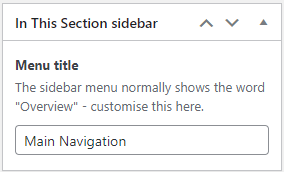
The parent page will appear as "Overview" in the submenu.
We have added an option so that you can change that wording if there's something more appropriate. You should be able to find this option near the bottom-right.

Sidebar CTAs
Sidebar CTAs or (calls to action) are an optional sidebar items that you can have appear whenever the sidebar is used.
You can add these in the same way you add to the header and footer navigation (see Navigation). In the Appearance->Menus area, choose "Create a new menu". Add a pages or links to your menu (again, the best guidance for this can be found in the WordPress Menu User Guide), and for the "Display location" make sure "Sidebar CTA Menu" is selected.